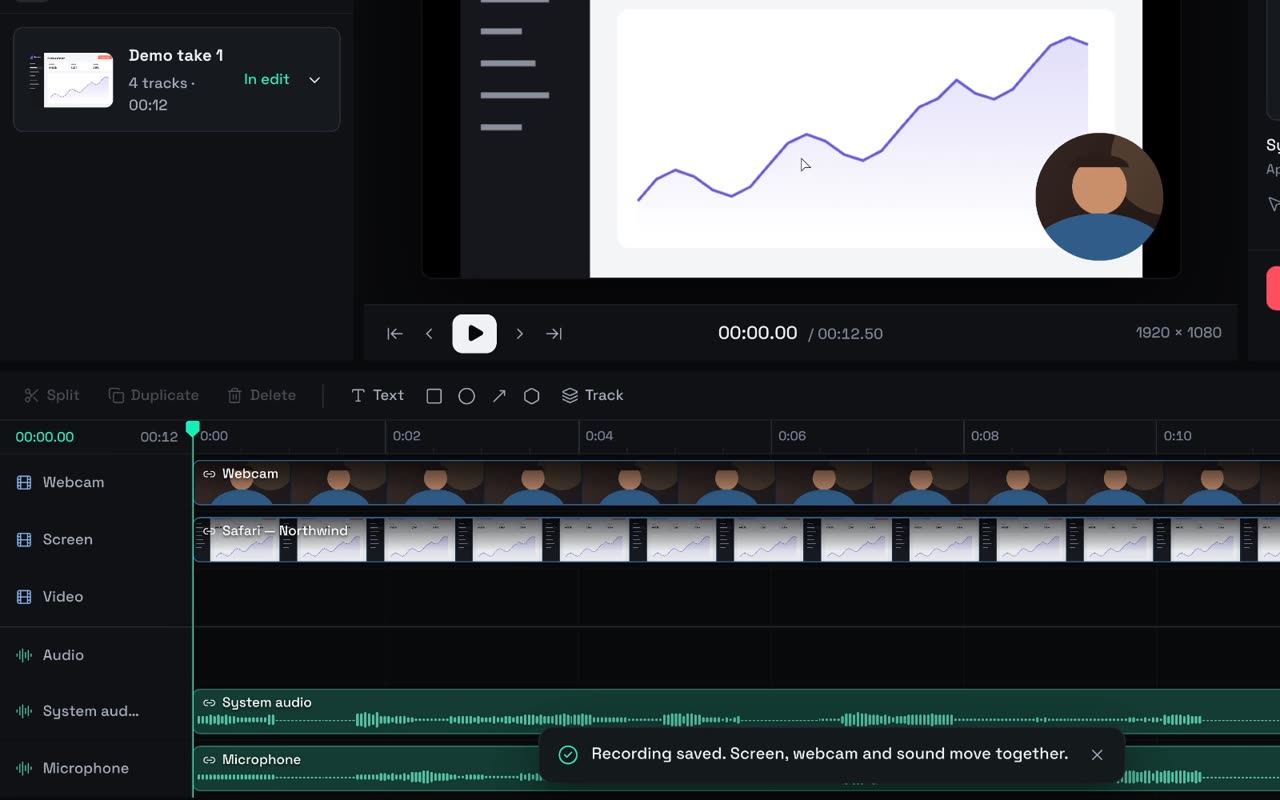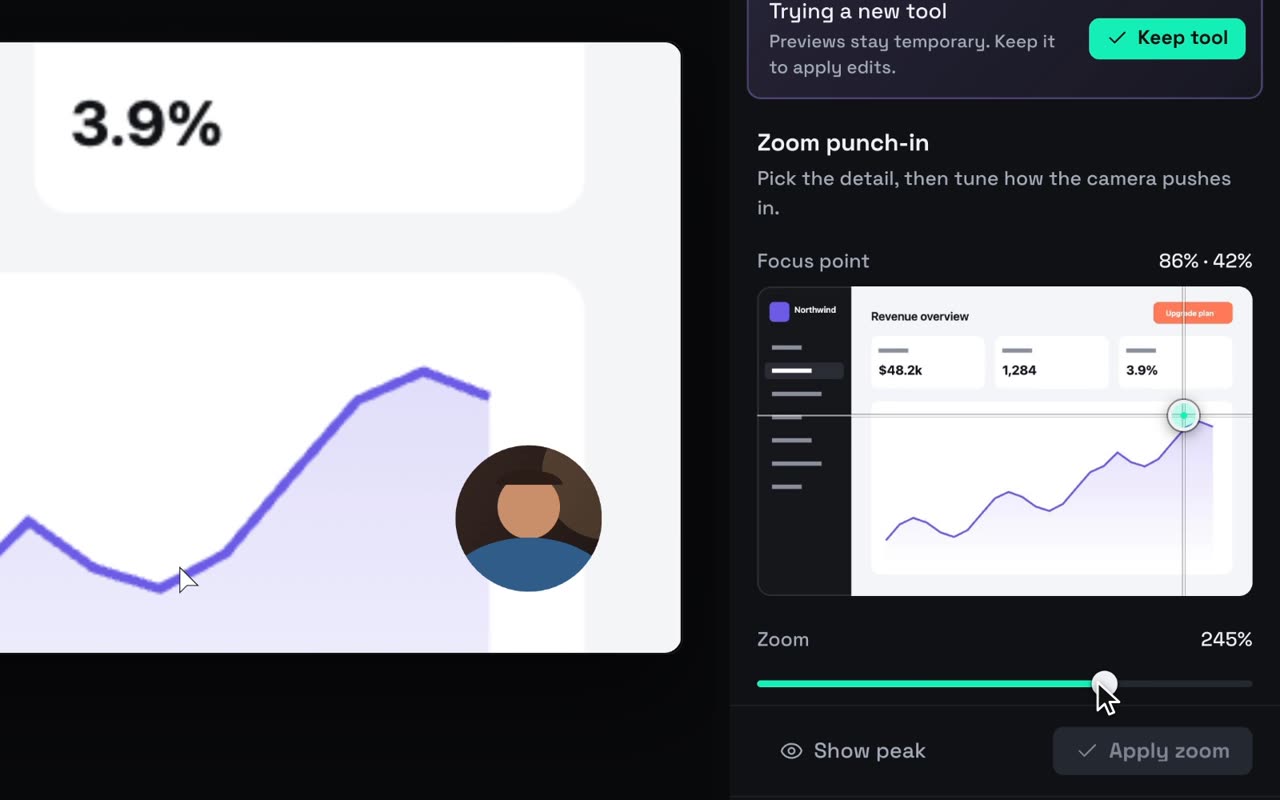
Your edit is done. This guide gets it out of Studio and in front of people: what the export is, where the file lands, what the free badge means, and how to post landscape and vertical cuts so they read on every screen.
What Studio exports
There’s one format, so there are no presets to pick and no settings to get wrong.
| Every export | |
|---|---|
| File | MP4 |
| Video | H.264 at 30 fps, encoded at a generous 12 Mbps target |
| Sound | AAC stereo, 48 kHz, 192 kbps |
| Size | 1920×1080 or 1080×1920, from the project’s format |
| Where it renders | On your Mac. Nothing is uploaded |
That’s a plain H.264/AAC file, the kind every social platform accepts and every browser plays. Exporting is free and unlimited.
Pick the shape before you start
The size comes from the Format you chose when you created the project: Landscape · 16:9 or Portrait · 9:16. A project can’t switch shapes later, so pick by where the video will live first.
| Where it’s going | Format |
|---|---|
| TikTok, Instagram Reels, YouTube Shorts | Portrait · 9:16 |
| YouTube, your landing page, a launch post on X or LinkedIn | Landscape · 16:9 |
Need both? Set up a second project in the other shape. For the vertical one, record a tall, narrow window: Studio fits your footage inside the canvas, so a wide window ends up small in a vertical frame.
Export the file
- Click Export at the top right, press ⌘E, or choose File ▸ Export MP4…. You need at least one clip on the timeline.
- The Export MP4 dialog opens in your project’s
exportsfolder, with the project’s name filled in. Keep it there or save anywhere you like. - On the free tier, the dialog says so before you commit: free exports carry a small “Made with Hubfluencer Studio” badge.
- If your edit uses generated media, the dialog also shows Show AI-generated content badge, on by default. More on that below.
Studio renders right away. A toast shows Rendering your video… with a percentage, then Checking the finished video…, which checks the finished file before Studio hands it over. Cancel export stops it, and your project stays saved and editable throughout.
Find the file
When the export finishes, the toast says Exported with the file name, plus Show in Finder. Missed it? The folder button beside Export shows the last export in Finder.
A project is a package, so Finder shows the whole .hubfluencer project as one item. Show in Finder skips that and takes you straight to the MP4.
Next to the MP4 you’ll find a small .hfprovenance file. It’s a receipt of what went into the export: which kinds of media (recorded, imported, generated) and a fingerprint of the exact file. It contains no prompts, file paths, project names or account details. Keep it with your records; you don’t need to post it.
The badge, and the licence
Studio is free to use, with every feature and no time limit. Free exports carry a small Made with Hubfluencer Studio badge in the bottom-right corner. On vertical exports it sits higher up, clear of the strip where platforms put captions, handles and buttons.
The Studio licence removes it:
- One payment, no subscription. It includes 12 months of updates, and every build released in that window stays badge-free for good.
- Up to 3 of your Macs.
- Buy it from Studio. Click Remove badge… on the finished-export toast, or open Settings ▸ Licence. Paste the key from your purchase email into Licence key and click Activate. Prices are in your currency; see pricing.
The badge is drawn into the picture at export time, so files you exported before activating keep it. Re-export them once your licence is active.
If your licence’s update window has ended, builds released after it export with the badge again until you renew. The toast then offers Renew updates… instead.
The AI-generated content label
This is separate from the Studio badge, and the licence doesn’t change it. If your edit includes generated shots, images, music or voice, the export dialog offers Show AI-generated content badge. Left on, a small “AI-generated content” label sits in the top-left corner, so viewers know at a glance. Turn it off only if you disclose it another way, for example in the post itself.
Posting tips
- Hook in the first seconds. Put the payoff, or a title promising it, right at the start. Scrolling thumbs decide fast.
- Assume the first play is silent. Many feeds start videos muted. Titles should tell the story on their own; sound is a bonus.
- Keep text out of the bottom strip on vertical. That’s where platforms draw captions, your handle and buttons, which is why Studio raises its own badge there. The top-left corner holds the AI label when you use one.
- Landscape on your site. Export landscape for your landing page. The MP4 is arranged so playback can start while it downloads. At 12 Mbps it’s upload-quality, so you may want a lighter copy for the page itself.
- Post the file, not a link. Upload the MP4 itself so it plays in the feed instead of sitting there as a link preview.
Let your agent export it
Claude Code, Codex or OpenCode connected to Studio from your terminal can export for you. Each export lands in the project’s exports folder, and a copy goes where you say:
Check the first and last seconds of the edit and fix anything that looks off, then export it to ~/Desktop/launch-vertical.mp4 and tell me its length and size.
Agents that support MCP prompts also list Studio’s Export for social prompt, which does the same check-then-export in one go. The Agent panel inside Studio edits but doesn’t export; use Export for that.
What it cost
Nothing. Exports render on your Mac, as often as you like. The only pay-per-use thing in Studio is optional generation, and it’s priced before it runs.
Next
- Record a demo that edits itself: better takes make better cuts.
- Connect the coding agent you already use: let your agent cut, title and export.