You recorded the thing. Now tell your agent what you want, in plain words, and watch each edit land on the timeline, where you can tweak it by hand. Here are prompts that work well in Studio’s Agent panel, plus how to steer when the first try isn’t quite it.
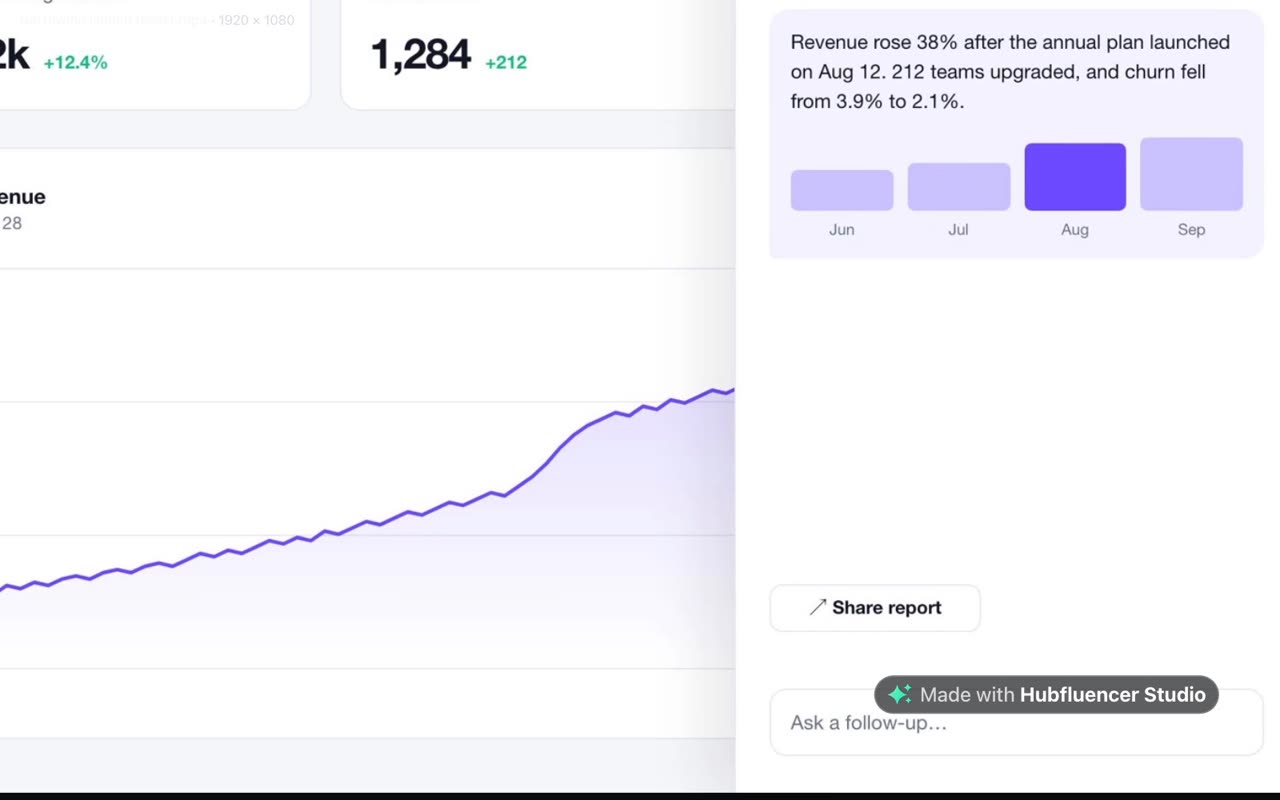
The clip above is Studio’s real interface running a sample project. The agent’s words and some waits are scripted or sped up.
Before you ask
You’ll need Claude Code or Codex connected in the Agent tab (here’s how) and a recording on the timeline. Then three things help:
- Select a clip first. The composer shows what’s selected, and your agent reads the selection, so “this clip” means something.
- Know what it can perceive. Your agent reads the timeline and looks at frames. For recordings made in Studio, it also knows when you clicked. It can’t hear sound.
- Give times in seconds. “Around 0:14” saves it from hunting through frames.
Cut the waiting
Look at the whole take first. Cut every stretch where nothing happens on screen, but keep the first second and let each page finish loading before the next step.
Your agent looks at frames across the take, then trims the recording. A Studio recording’s screen, webcam and microphone are linked, so they’re cut together and stay in sync. Studio’s timeline doesn’t ripple on its own, so the agent moves the later clips back to close each gap.
Tip
Talking over the demo? Your agent can’t hear where you speak, so tell it: “I explain the chart from 0:20 to 0:31. Keep all of that.”
Zoom to the action
Zoom in on each click, about 1.5×. Hold for a second, then ease back out. Skip the clicks in the menu bar.
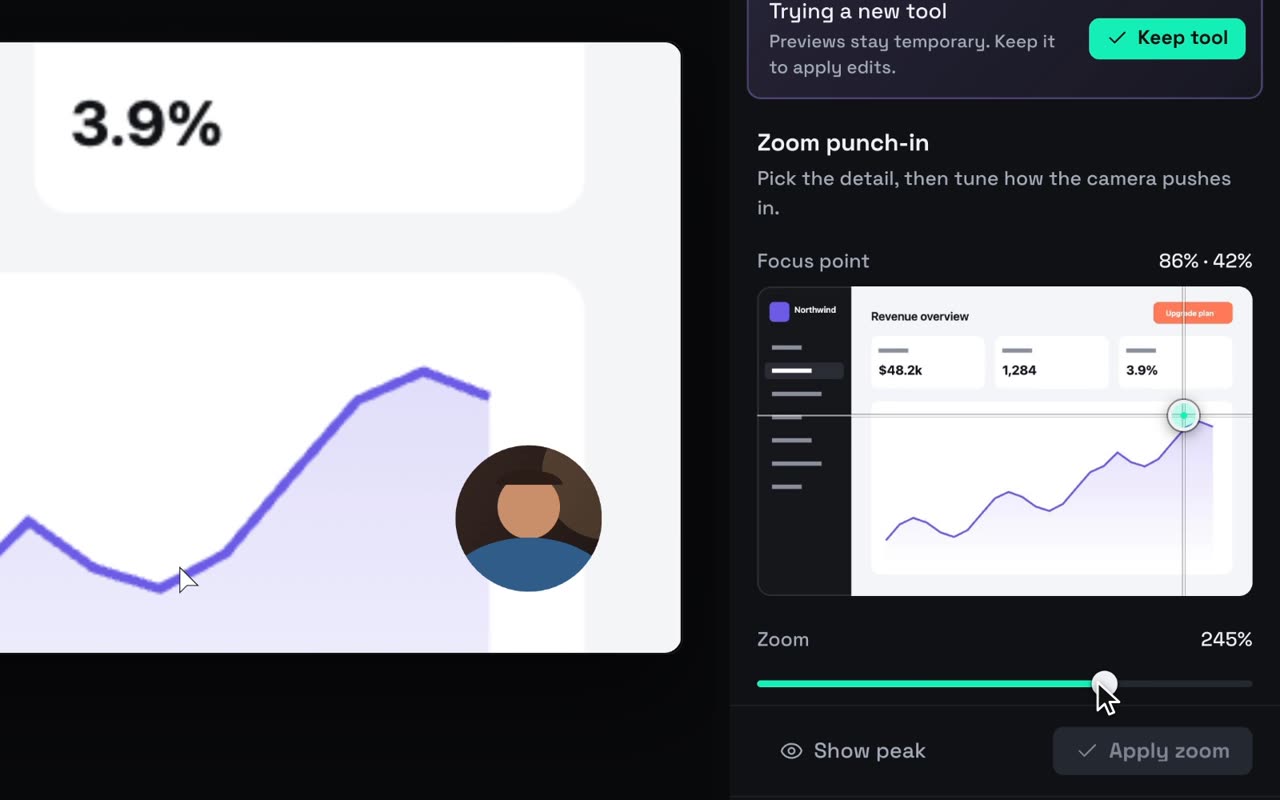
The zooms are eased keyframes on the screen clip. Each one shows up as a diamond on the timeline, and you can adjust it in the Inspector. On an imported file with no click data, point at the moment: “zoom on the Export button when it lights up, around 0:14.”
Want a control you can reuse? Ask for one: “Build me a zoom punch-in tool.” Before your first message, the panel suggests tool ideas that fit the selected clip, such as Zoom punch-in, Privacy blur or Cursor spotlight.
Crop and frame
Crop off the browser toolbar and the Dock, then scale the screen so it fills the vertical frame. Keep my webcam circle in the bottom-right corner.
Crop, position, scale and masks are the same controls you’d find in the Inspector. To restyle the webcam later without rerecording, use Inspect → Overlay style.
Mark what matters
Blur the email address in the top-right for the whole clip. Draw a rounded highlight box around the Upgrade button from 0:08 to 0:11. Then make the cursor bigger, with a click ring.
Blur regions, shapes (rectangles, ellipses, arrows) and cursor styling are all regular edits. Cursor size, smoothing, Hide when idle and the click ring apply to screen recordings made in Studio.
Titles and captions
Add a short title at the top for each step: "Open revenue", "Spot the jump", "Share the report". Give them a black outline so they read on any background. End on a centered card with the app name for the last two seconds.
Your agent writes these as text layers on the timeline, timed to the steps it sees. They’re titles in your words, not a transcript. Select one to change its words or size in the Inspector, or drag it on the timeline.
Speed up a stretch
I scroll through the report from 0:12 to 0:20. Play just that stretch at 2× and move the later clips up so nothing is left hanging.
Your agent makes that stretch its own piece and plays it faster, and later clips follow. Speed runs from 0.25× to 16×, and sound keeps its pitch. To do it by hand, select a clip and open Speed in the Inspector: pick a preset or drag the dial, or type a length into Fit into and Studio works out the speed. Move later clips shifts everything after it along. Select a whole recording and every layer changes together.
Pace it to music
Ask for a track, and your agent prepares the request:
Request 20 seconds of warm, minimal piano music to go under this edit. I'll approve it.
Studio opens Review and approve with the model, the prompt, the price, your balance and the quote’s expiry. “Nothing is generated or charged until you approve.” The button reads Approve · €0.10, or the same number in your currency. The finished track lands in Media. Paid generation needs your Hubfluencer account connected in Studio, plus a little balance.
Then fit the edit to the track:
Put the music under the whole edit. Shorten the middle step so the video ends with the track, and fade the music out over the last second.
Your agent sees the track’s length, not its beat. If timing matters, give it numbers: “The track is 120 BPM. Change titles on the beat.”
Voice it
Write one short voiceover line for each step, ten words at most, and put them all in one price review. Once I've approved and they've arrived, place each line where its step starts.
Your agent writes the lines from what it sees, one per step, in the voice you last picked in Generate ▸ Voice (or your language’s default voice). Studio opens one review for all of them, at 0.15 a line. After you approve, your agent places each line under its step. It can’t hear the result, so give it a listen and drag a line if it lands early. Music, voice and generated shots covers voices and prices.
Pick the best take
While you record, Keep & restart keeps each take in Media and starts a fresh one. In edit marks the takes already on the timeline.
I recorded the signup flow three times. Compare the takes and put the shortest one where the form submits cleanly on the timeline. Leave the others in Media.
Your agent can look at frames from any take in Media, not just the one on the timeline.
Review, undo, steer
- Watch the steps. Between replies, the panel groups your agent’s actions, like Read the project, Looked at the video and Edited the timeline. Click a group to see each step.
- Every edit is one undo step. Press ⌘Z to undo and ⇧⌘Z to redo, or use the arrows in the top bar. Several changes made in one edit undo together. Undoing yourself is faster than asking.
- Keep editing by hand. If you change the timeline mid-turn, your agent’s next edit is refused until it re-reads the project. It never edits a timeline it hasn’t seen.
- Stop ends a turn that’s heading the wrong way.
- Be specific. One job per message, say what to keep, and ask it to look before it cuts and to report what changed, in seconds.
- Model and thinking. The pickers in the composer are your agent’s own. For fiddly timing, try another model or more thinking.
- New conversation starts fresh when you switch topics. Otherwise each project remembers its conversation.
Note
Driving Studio from your terminal instead? There, cutting dead time and zooming toward the action are one built-in action each. See Drive Studio from your terminal.
What it cost
| Cost | |
|---|---|
| Every edit in this guide | Free |
| 20 seconds of music (optional) | 0.10 |
| Voiceover lines (optional) | 0.15 each |
| Export on your Mac | Free |
The price is the same number in EUR, USD or GBP, charged to your Hubfluencer balance only when you choose Approve. Your agent’s own usage counts against your Claude or ChatGPT plan. Free exports carry a small Studio badge, and the Studio licence removes it.
Next
- Drive Studio from your terminal: the same edit, hands-off.
- Connect the coding agent you already use: setup, permissions and the spending fence.